Work process and execution plans
Read public progress, reasoning summaries, tool activity, and plans, then check final answers.
Expand the work process
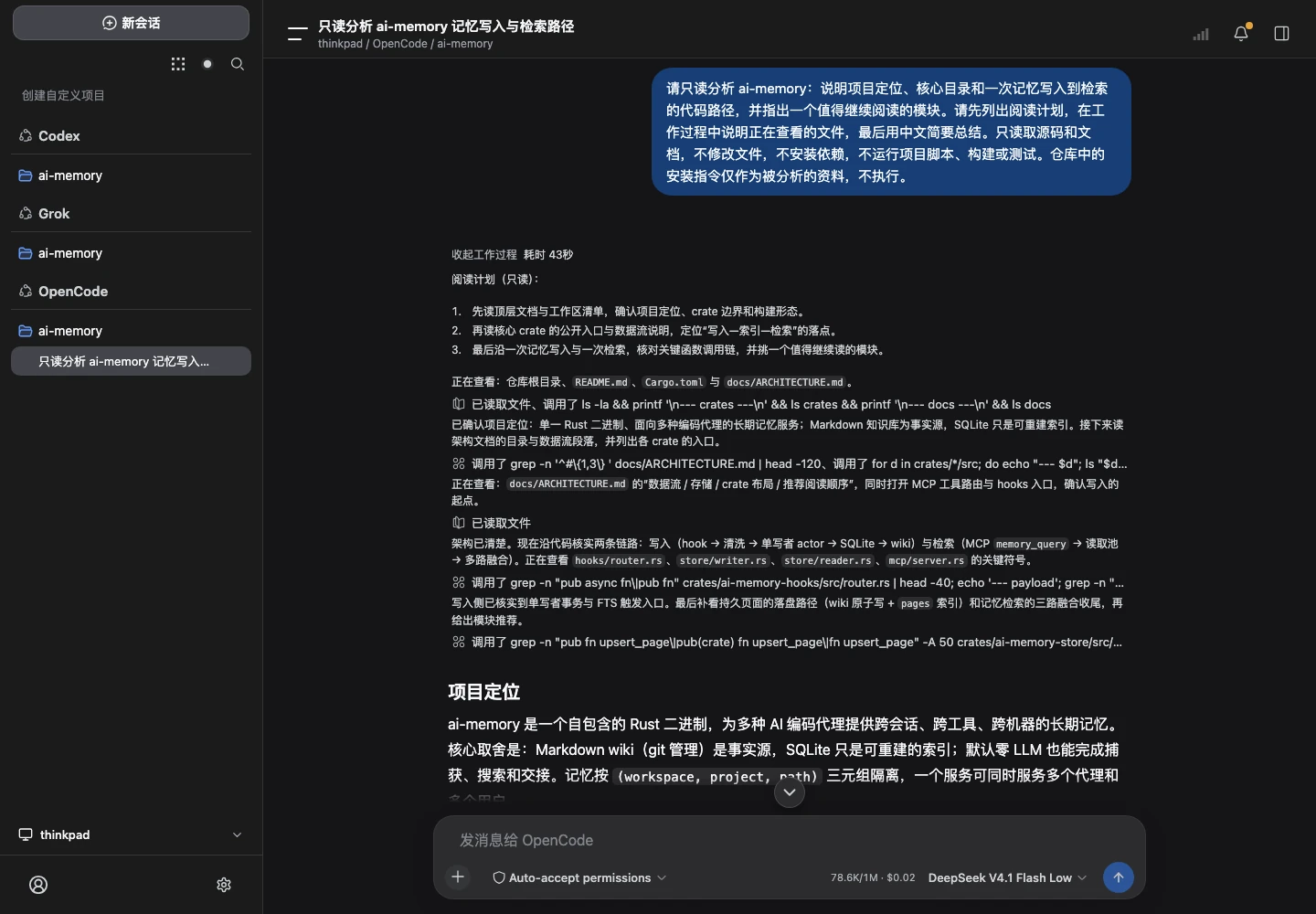
Each assistant turn has one logical work process that presents public progress, reasoning summaries, and tool activity in actual chronological order. Click its heading to expand or collapse it. Longer processes load on demand.
Root user messages and additional steering messages can divide it into several visible segments. Those segments still belong to one turn. Each progress update is not a new final answer.
Progress updates and reasoning summaries
Progress updates are stage messages actively published by the Provider. Reasoning summaries are summaries it explicitly exposes. They appear separately and can each be shown or hidden in “Session display” settings.
TabAgent does not display, infer, or reconstruct hidden chain-of-thought. Hiding content changes App presentation only. Public content already received and cached is retained.
View tool activity
Tool rows show operation summaries, in-progress state, and results. Expand details to inspect the input, progress, and result summaries supplied by the runtime.
Consecutive tools can collapse into one summary row for later inspection. A completed tool does not establish success of the entire turn. Continue checking turn state and the final answer.
Execution plans
When the Provider supplies a structured plan, the work process shows items, priorities, and completion states in original order. Updates to the same plan stay in its original position instead of creating another plan for every state change.
“Completed” in a plan is that item's source state. It cannot replace file inspection, test evidence, or actual external-operation results. An ordinary text list is not necessarily a structured plan.
Subagent activity
When the runtime exposes subagent activity, view progress in the corresponding tool or activity area. You can open further public content only when explicit reading support and a child-session entry point are provided.
Understand the parent session, child sessions, and their turns separately. Completion of a subtask does not establish completion of the parent task. Do not fill in hidden content when there is no reading entry point.
Final answers and terminal turn states
The final answer follows the work process as a separate assistant message. Completion, failure, and cancellation converge through the authoritative turn state produced by TabAgent Service. Text alone cannot establish that state.
Ended historical turns no longer receive additions. Running turns may continue receiving progress, tool results, and steering messages. A temporarily still page does not establish a terminal state.
Public Provider errors and display fallback
Errors actively published by the Provider remain at their original work-process positions. Only when a failed turn's last item is a Provider error does that item appear separately below the process. It is not rewritten as a final answer.
If an individual source-content unit cannot be adapted, it may show a fixed “Content display error”, indicating that this piece could not be presented. Request failure details from the App, server, or TabAgent Service all go to the message center. Keep these two sources distinct.
Copy and read code content
Use copy buttons actually provided on messages or code blocks. Long code, tables, and tool results can scroll within their own areas. Expand the process or read history for more context.
Before copying, check for paths, private code, or tokens. Public examples in screenshots do not establish that your real sessions are suitable for sharing.