New sessions and Capability
Choose a device, Capability, and project separately before starting a task.
Three choices for a new session
- Select the execution device at the bottom of navigation.
- Click “New session”, open “Select Capability”, and choose the runtime for this task.
- Open “Select working directory” and choose a project on that device.
- Check the model and permissions, enter the task, and send the first message.
The device determines where the task runs, the Capability determines which runtime handles it, and the project determines the working directory. These choices are independent. After switching devices, use the new device's actual directories.
Choose a Capability freely
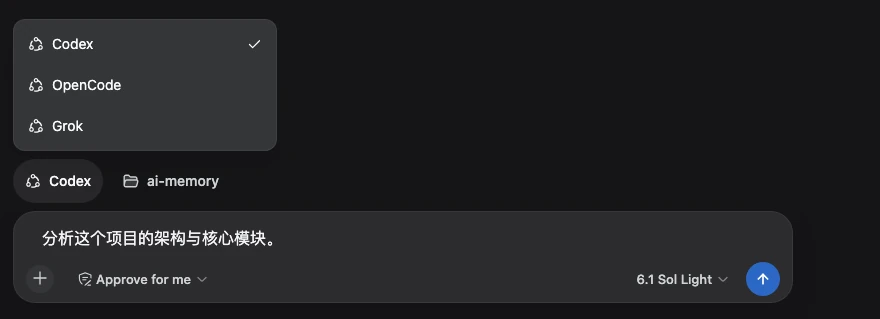
Click the Capability name above the composer and choose Codex, OpenCode, Grok, or another runtime provided by the current device. Names and options come from the actual TabAgent Service. Website screenshots show only the three connected in this sample.
One page can manage sessions across Capabilities. Existing sessions still belong to their original Provider. Changing options on the new-session page does not migrate an existing session.
Select and find a working directory
Click the working directory button, search by name or path in the project selector, and choose a result. Available directories are provided by the current device's TabAgent Service. Projects with identical names on different devices may be completely different directories.
If a project is missing, first configure the discoverable project roots on the execution device, then refresh the directory. This entry point does not upload browser files as a server project.
Start directly from a project
Click the new-session action beside a project under the relevant Capability in the sidebar to preselect that device, Capability, and project. Still verify the choices displayed in the composer before sending.
Custom projects organize sessions and do not represent real working directories. When entering from a group, use the working directory actually displayed on the new-session page.
First message and session identity
After the first message is sent, TabAgent Service establishes an identity corresponding to the Provider's native session. TabAgent Service generates the initial title using the device's local time, such as “New session 2026-10-19 14:30:00”.
The title may later adopt an automatic title published by the Provider. To keep a fixed name, rename the session. Later Provider title updates will not overwrite a manual name.