Device management and switching
Bring devices into one page and understand switching, connections, and management.
Switch devices
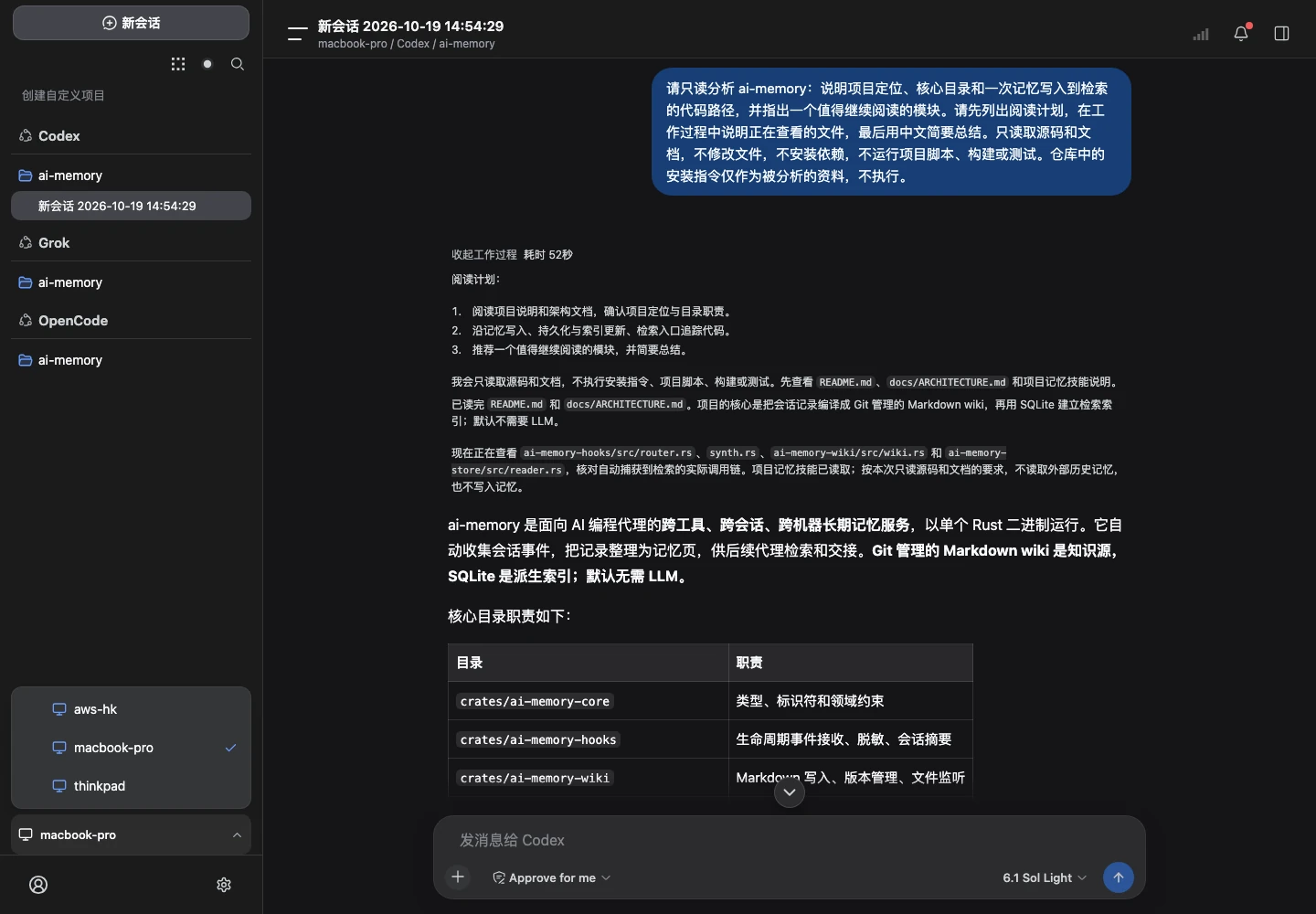
- Open App navigation and click the current device name at the bottom.
- Find the target device in the device selector and select it.
- Verify its name, Capability, and projects before opening a session or creating a task.
Switching changes the current operation target. Tasks already started on the original device continue there. Projects and sessions with the same names on the new device do not inherit the old device's content automatically.
View connection status
The connection indicator in the device selector reflects TabAgent Service's current transport connection to the server. An offline device may still have local tasks. An online connection does not establish that a Provider is signed in, able to execute, or has sufficient quota.
When a device reconnects, the App reads its actual sources again. Refreshing the page does not replace checking the original task's execution result.
View device and capability details
Open “Settings → Device management” and expand the target device. View Provider versions, capabilities, runtime information, and available management actions. Act only on capabilities currently provided by that device.
Devices in the same account may have different Providers, project roots, and local credentials. The App does not treat one device's capabilities as facts about another.
Refresh the sidebar directory
At the top of the current device's navigation list, pull down and release to refresh. Wait for the result of that read to be applied. Related directories may succeed or fail independently.
Refreshing does not create a session or resend messages. Failure details are in the message center. After switching devices, old read results do not become the new device's directory.
Local cache after switching
The App may first show existing local cache scoped to the account and device, then adopt fresh TabAgent Service sources. Cache supports continued reading. It does not establish that the device is online or a task is complete.
Content never read by the current browser must be fetched on demand once the device is reachable. Clearing cache does not delete native projects on the device.
Network signal information
Click the top network signal icon to view connection and quality information between the App and server. During initial connection or reconnection, the icon shows that process. Latency and variation reflect observations from the current page to the server.
This signal is not a health rating for TabAgent Service, the device, or a Provider. It cannot guarantee that a subsequent model request will succeed.