Project files and Git browsing
Browse file trees, source code, changes, commits, and branch history read-only.
Open the project browser
After selecting a real project or opening one of its sessions, click “Open project browser” at the top of the page. Verify the current device and project path before browsing.
The desktop App can show the project beside a session. The mobile App opens browsing through the same action. After switching devices or projects, use the new target's data.
Browse the file tree
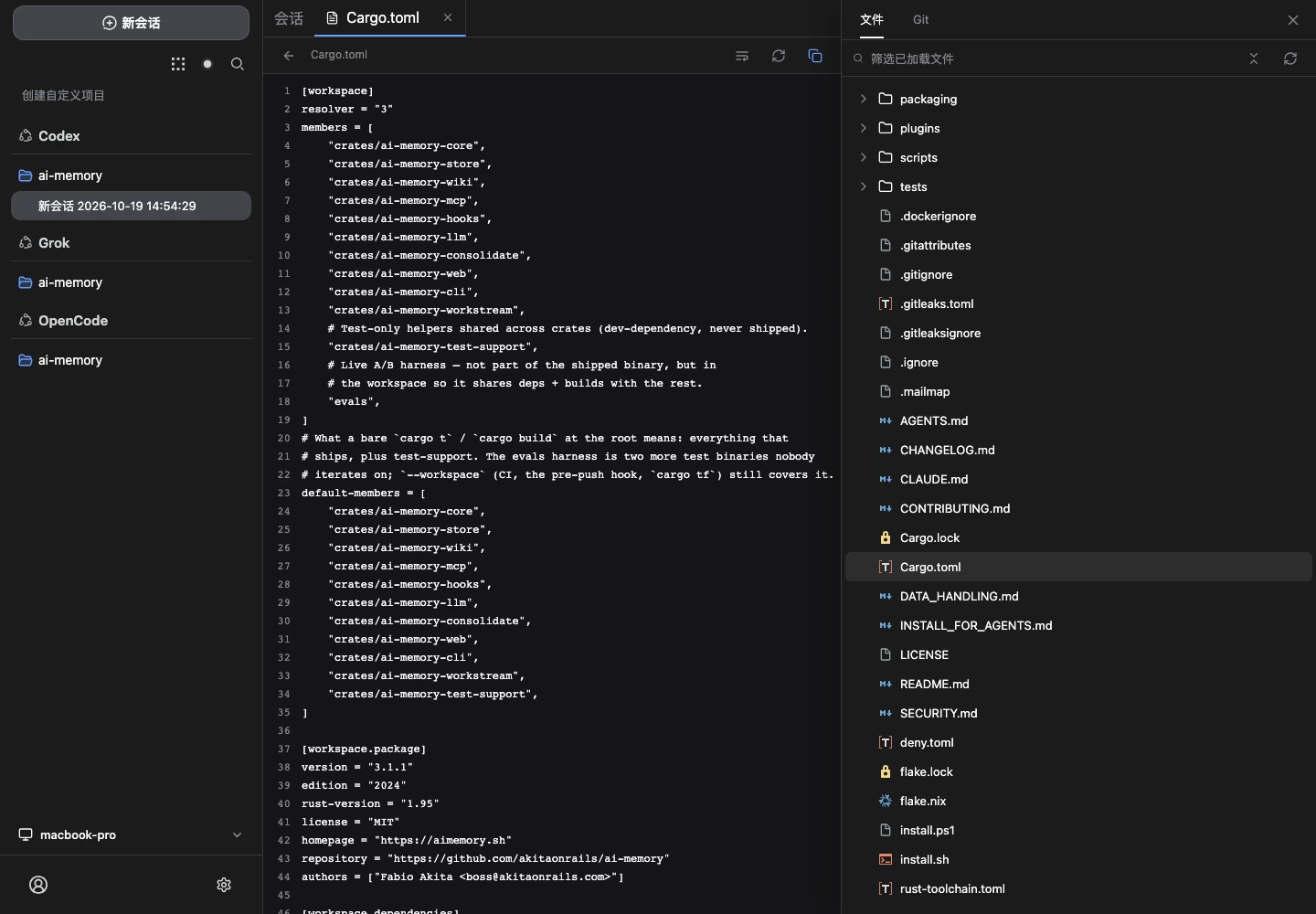
Expand directories in the file view and click files to read them. Icons distinguish file types. Paths identify which project a file belongs to.
The file list follows the project scope readable by the current TabAgent Service. This entry point supports read-only browsing, without file upload, editing, renaming, or deletion.
Read source code and copy paths
Click a file to read its source preview. Toggle line wrapping, scroll horizontally through long lines, or copy the path to locate the local file as needed.
Large files, binary files, and unsupported previews are shown according to the actually readable scope. An incomplete preview does not establish that a disk file is empty. Check the message center for loading and reading problems.
View current workspace changes
Select “Current workspace” in the Git view to see files grouped by conflicts, staged, unstaged, and untracked status. Click an entry to read its diff, then return to the list.
This reflects disk and Git state at read time. It does not commit, stage, or resolve conflicts. While a task is changing files, refresh explicitly to inspect new results.
Browse commit history
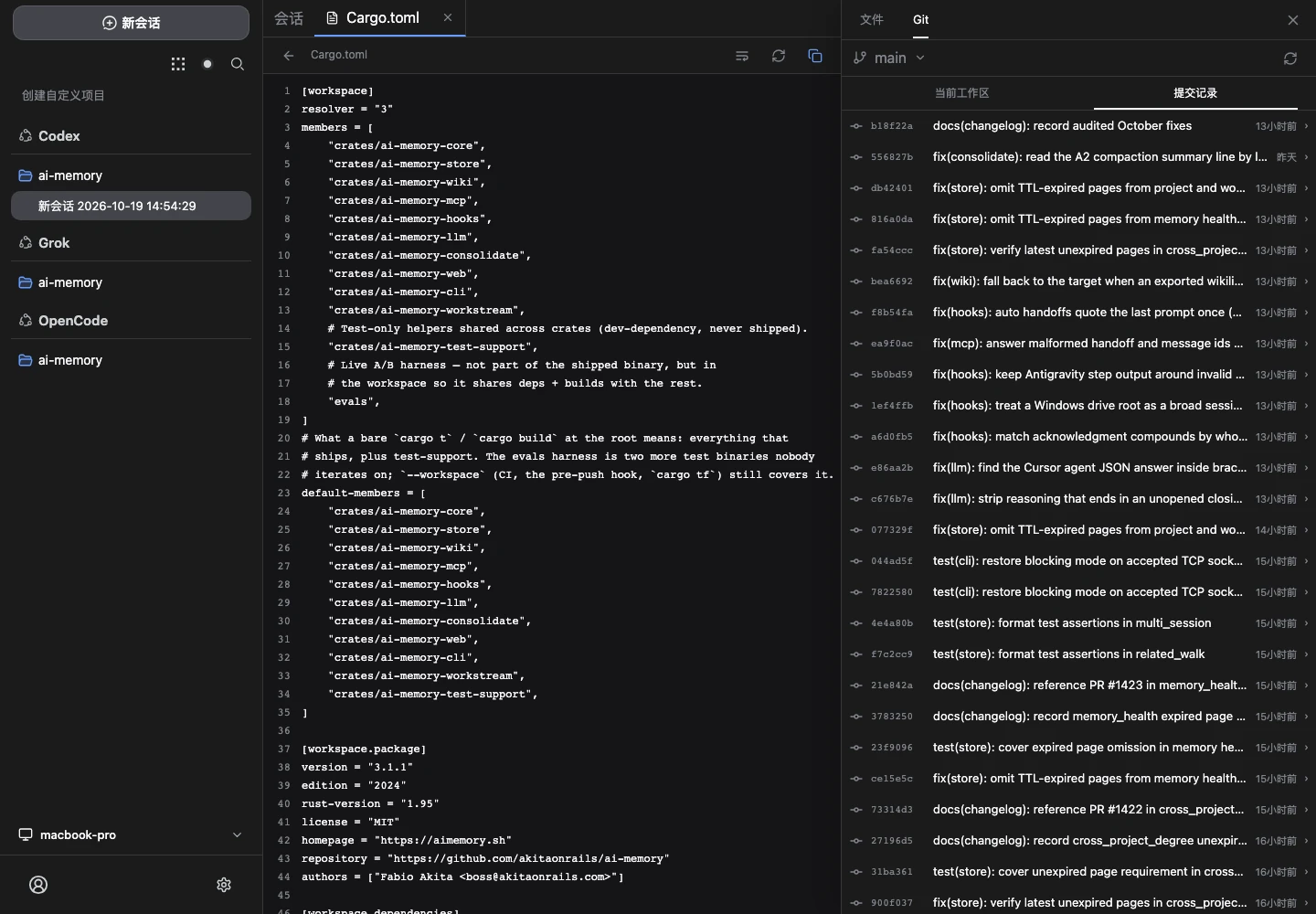
Switch to “Commit history” and click a commit to view its message, author, time, and affected files. Select a file to read its diff. Use “Load more” when further records are available.
Shallow clones may contain only part of history. The screenshot sample uses a shallow clone at a fixed commit. No further records does not establish that the upstream repository has only one commit.
Choose a branch to browse
Click “Browse branch”, select a local or remote branch, and inspect its history. This is available only when TabAgent Service supports branch selection.
This selects the history being browsed. It does not perform checkout on disk, switch the workspace, or affect a running coding task.
Back, refresh, and reading position
Use the preview's back button to return to the file or commit list. Paths, active entries, and scroll position help you continue reading. Do not rely on old context after changing devices or projects.
Refresh to fetch the current source. Refreshing is a read action. It does not rerun session messages or write to Git automatically.
Filter loaded files and collapse directories
Enter a name above the file tree to filter loaded files. Filtering does not traverse the whole disk or silently read every unopened directory. Expand and load the relevant directories for deeper content first.
Use “Collapse all” to simplify the tree. Use “Load more” for paginated directories. Filters remain limited to loaded content.
Workspace tabs and copying commit hashes
The desktop layout lets you switch between workspace tabs for open files, commits, and diffs. Close a specific tab to return to other content. On mobile, use back controls between lists and details.
Use “Copy commit hash” in commit details to obtain an exact commit identity for local Git verification or issue reports. Copying a hash performs no Git write operation.